Accepting Your Financial Aid Awards
Use the following steps to accept, decline or change your awards.
- Access MyRecords. Sign in using your UNMC NetID and Password.
If you need assistance with your credentials or password, contact the UNMC Help Desk at 402-559-7700.
On your first visit to MyRecords, you will be prompted to verify your contact information to ensure that your information on file is correct. - After logging into your account, you will see your portal homepage with all your current information and other important areas for reviewing financial aid, enrollment, student hold (holds may block you from enrolling and receiving aid), and Student Accounts.
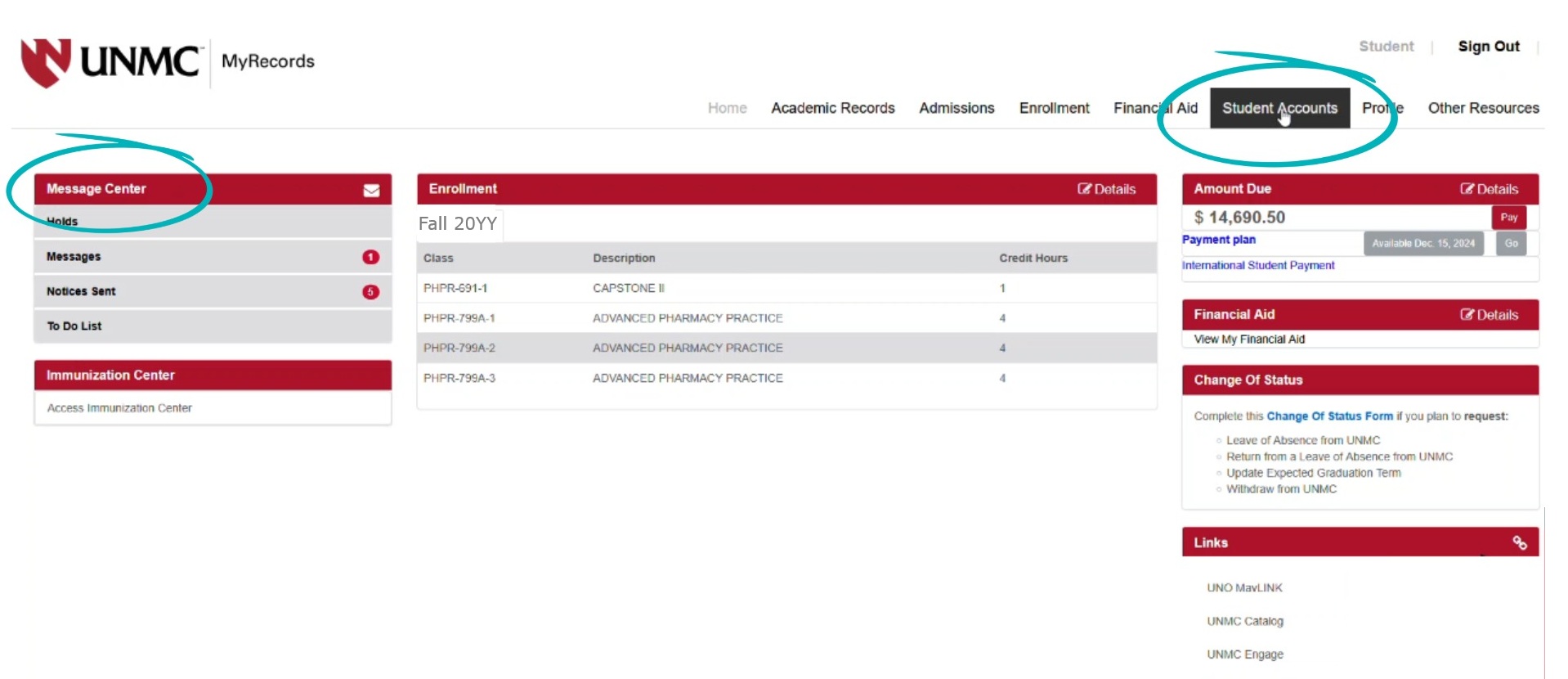
- The Message Center shows holds placed on your account by
UNMC, a list of all the notifications sent to your UNMC email and To Do List
items that may pertain to your financial aid or your program. Be aware that all notices are sent to your UNMC email address and not a personal email address. - In the top menu, click Student Accounts to find tuition and fees calculated after you enroll for the term and see the aid disbursed to your account.
- The Message Center shows holds placed on your account by
- In the top menu, click Financial Aid. The Financial Aid screen appears.
- In the drop down menu at the top of the page, select the aid year you want to view.
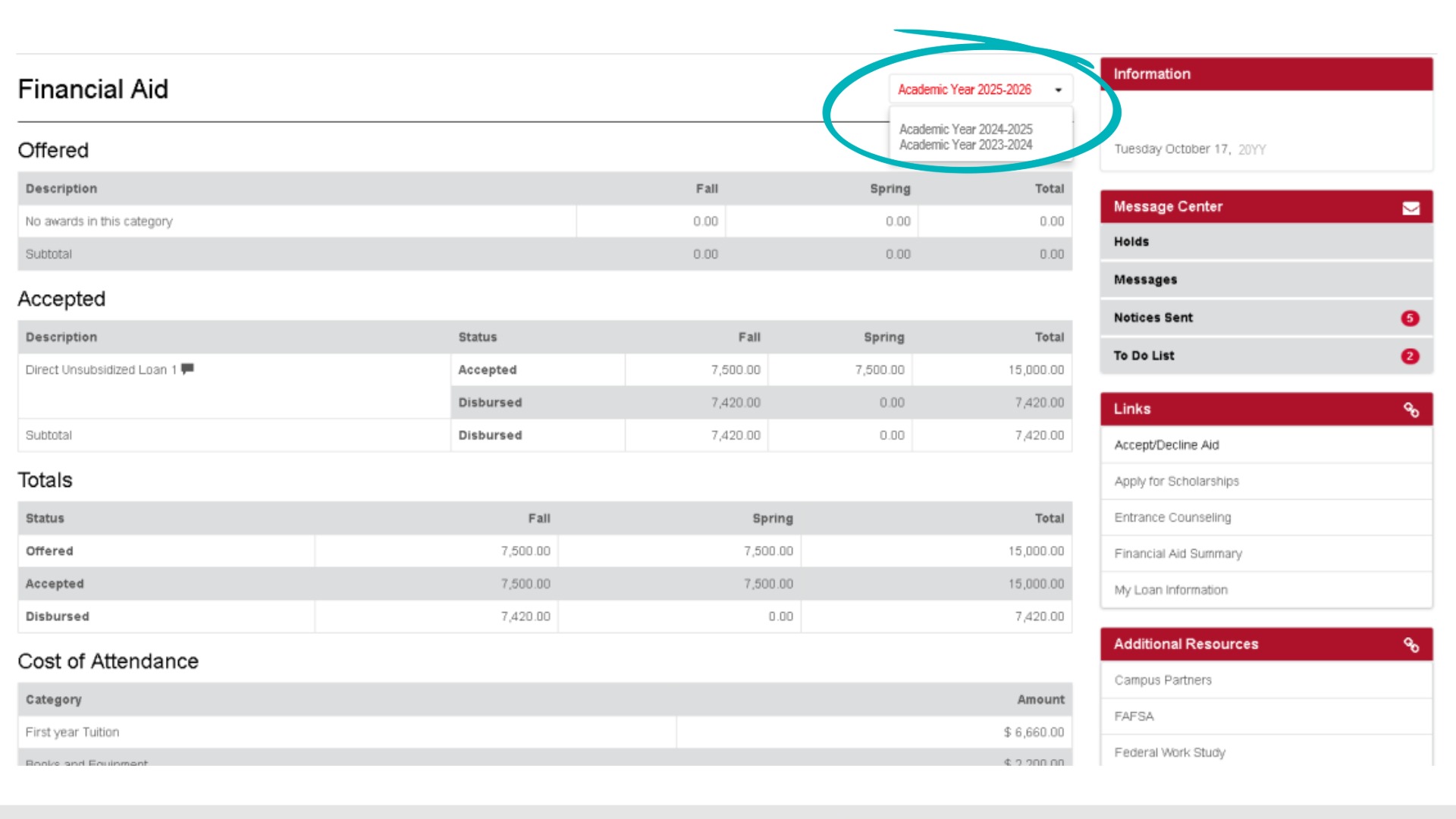
The page displays loans offered, accepted and totals for your loans. Your cost of attendance is listed at the bottom of the page. - On the right side of the screen in the Links section, click Accept/Decline Aid.
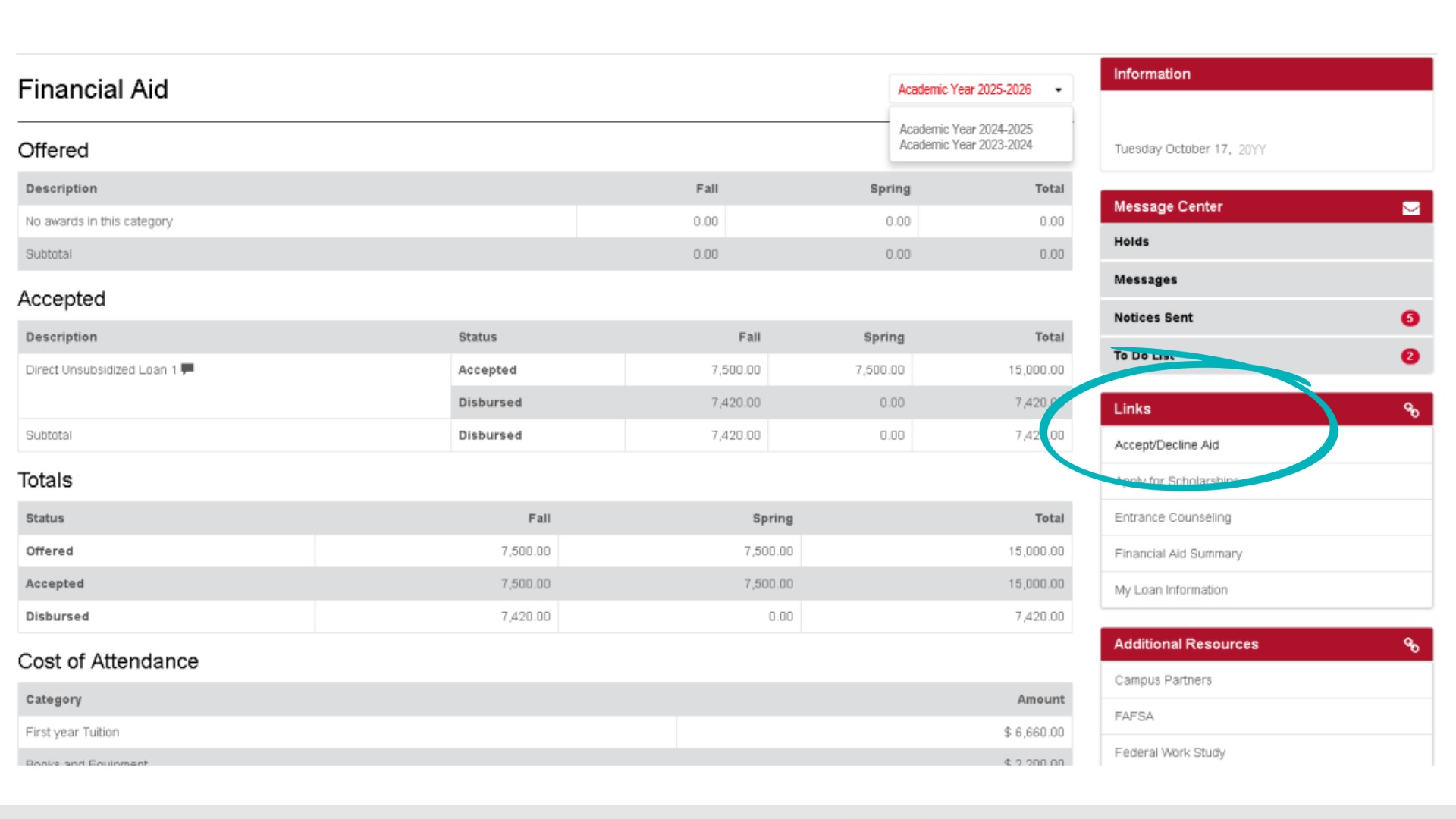
- Select the current aid year. Note: Awards for the entire year will appear under “Fall 20XX and Spring 20XX”, including any awards that you may have for the summer term.
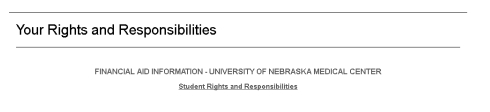
- In the Your Rights and Responsibilities section, click the Student Rights and Responsibilities link to read the statement. Click Continue at the bottom of the statement.
- In the Disbursement Authorization section, click Disbursement Acknowledgement to read the statement. Then, click Authorization, select the Yes radio button and click I Understand.

- The Accept/Decline Awards screen lists all awards offered to you. If you would like more information about a particular award, click the information button that appears after the award name.
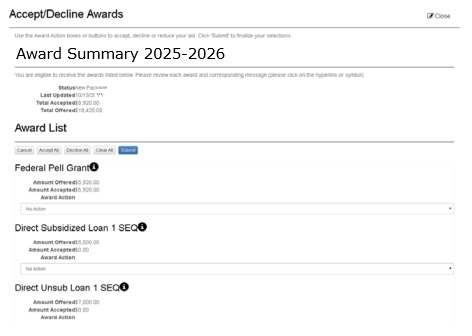
- You have the option of accepting or declining all or part of your awards. If you want to accept or decline ALL of your awards, you may click either the ACCEPT ALL or DECLINE ALL buttons at the top of your awards list.
- In the dropdown menu below each award, you have the option of accepting the full award, declining the award or accepting a lower amount. If you only want to accept a portion of your awards, select Accept Lower Amount. Enter the amount you want to
accept in the box provided.
- After accepting or declining your awards, perform a secondary review to confirm you are accepting the awards and amounts you want. If the information is correct, click Submit. After submitting, you will see a confirmation at the top of the page confirming that your awards have been saved.

NOTE: FEDERAL LOAN AID CANNOT BE ACCEPTED FOR A SINGLE TERM ONLY. YOUR ACCEPTED AMOUNT OF LOAN AID WILL BE DELIVERED BASED ON THE TERM SPLIT OF YOUR PROGRAM.
Review the Message Centers
You are required to review your Financial Aid Message Center for additional information or processing requirements. Your Financial Aid Message Center shows all Holds, Messages, Notices Sent and To Do List Items.
We encourage you to review your Message Center under each area of MyRecords (top menu). Other areas may place your account on hold (for example, for missing transcripts or immunizations). These holds will not appear under the Financial Aid Message Center area.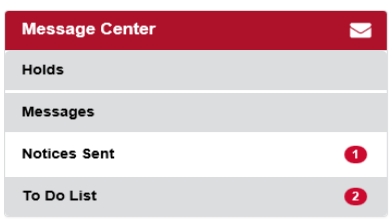
Click each section to review contents.
- Review the Holds section on a regular basis. Holds may result in no registration, which will result in you not receiving financial aid.
- Notices Sent will show a copy of the communication sent to you.
- To Do List will list any processing requirements that you need to complete. You can click on each to do list item for additional information and links about how to complete the requirement. If you fail to complete all To Do List requirements, your aid request will not be processed.
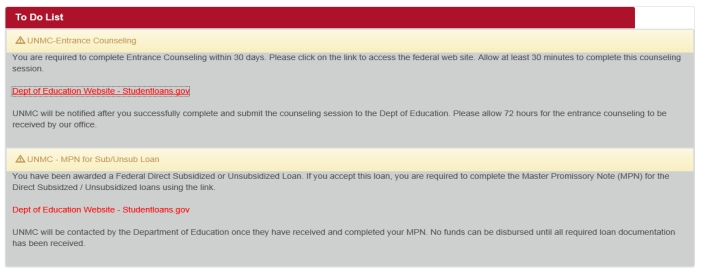
After UNMC has confirmed the document or process is completed, the item is removed from your To Do List. Please allow 72 hours after completing the process for the To Do List requirements to clear. Requirements clear using timed processing runs that rely on Department of Education processing. Most processing runs are not done every day.