UNMC and Nebraska Medicine Information Technology is updating how users sign in to Microsoft 365 to provide a more secure, modern login experience.
This update includes changes to the Microsoft sign-in screens and Duo multi-factor authentication, which protects against accidental or fraudulent approval requests.
No action is required by the users when the change starts Thursday, March 26. Simply follow the on-screen instructions during sign-in.
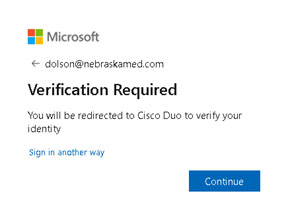
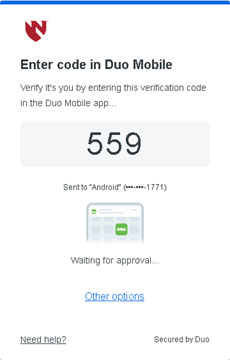
Users now will see a Microsoft-hosted sign-in and approval prompt. Duo MFA will use the new universal prompt with number matching. Instead of a simple Deny/Approve push, users will be prompted to enter a numeric code shown on the screen into the Duo app on your phone.
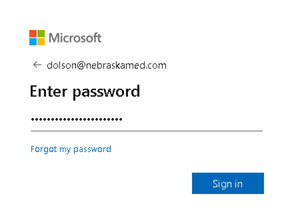
When logging into Microsoft 365 while on the corporate network, users will authenticate using the Microsoft sign-in experience.
When logging into Microsoft 365 from outside the network, users will see the new Verification Required prompt. Click Continue and the Duo Universal Prompt will appear with a numeric verification code. Instead of clicking Deny/Approve, users will enter the number shown on the screen into the Duo Mobile app.