
Time is running out for users who currently access work applications on their personal devices, such as their mobile phone, through the Intelligent Hub.
To maintain access to work applications on personal devices, users must install Intune Company Portal, the replacement for the Hub, by Sunday, Aug. 2.
In recent weeks, articles have been shared on the NOW and UNMC Today about Nebraska Medicine and UNMC transitioning from the Intelligent Hub to Microsoft Intune Company Portal.
To move personal devices from the Hub over to Microsoft Intune Company Portal, follow these steps:
- Launch Hub
- Go to Support > Your Device > Unenroll
- Download the Company Portal app (available from either the App Store (Apple iOS users) or the Google Play store (Android users). Android users will need to download Duo as well
- Launch Company Portal, log in, and follow the prompts.
- If you are missing any apps (e.g., Outlook, Teams, etc.), you can search and download them from Company Portal.
For more specific instructions and screenshots showing steps for your device, please review this resource.
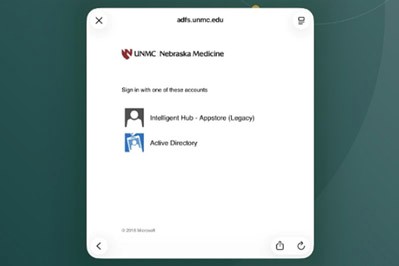
Note that during this migration from the Intelligent Hub to Intune, users may see a different prompt on their phone when launching a work app, as shown in the screenshot at right.
Once you have migrated to Intune Company Portal, please select “Active Directory” if prompted.
Users may also receive an additional Duo prompt when launching a work app from their phone. Both are temporary measures during migration. When the Intelligent Hub platform is fully retired after Aug. 2, these additional prompts should be removed.