Setting Up an Authorized Payer
Follow these steps to add authorized payers to your student account.
- Login to MyRecords using your credentials.
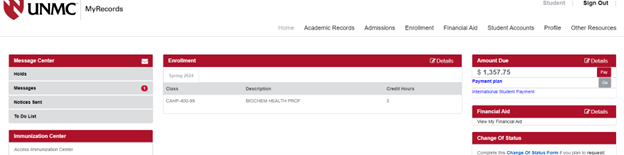
- On the MyRecords portal home page, click the red Pay button. Be sure your browser settings allow pop-ups from this website.
-
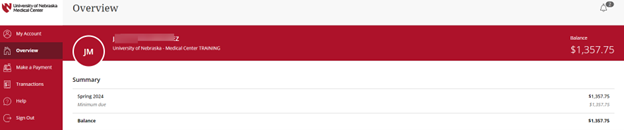
A new window will open for the UNMC E-Payment System. In the left navigation pane, click Overview, if it is not already selected.
-
If a Send a payer invitation message appears in the center of the Overview page, click it to initiate adding an authorized payer.
-
If the message does not appear, click My Account in the left navigation pane to return to your Profile page. Under the Payers section, click Send a payer invitation.
-
-
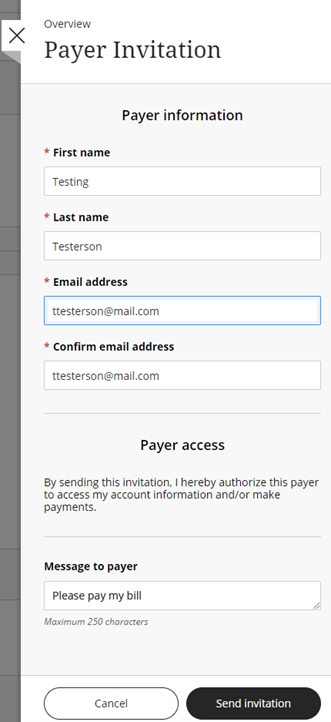
A Payer Invitation dialog box will open on the right side of your screen.
-
Enter the name of your Authorized Payer, the email address the login information should be sent to, and a short message (optional). This message will be included in the welcome email your authorized payer will receive with their login information.
- Then, click Send invitation.
-
- A welcome email is sent to your authorized payer. The emaill will include their login information as well as the link to the UNMC E-Payment system.